


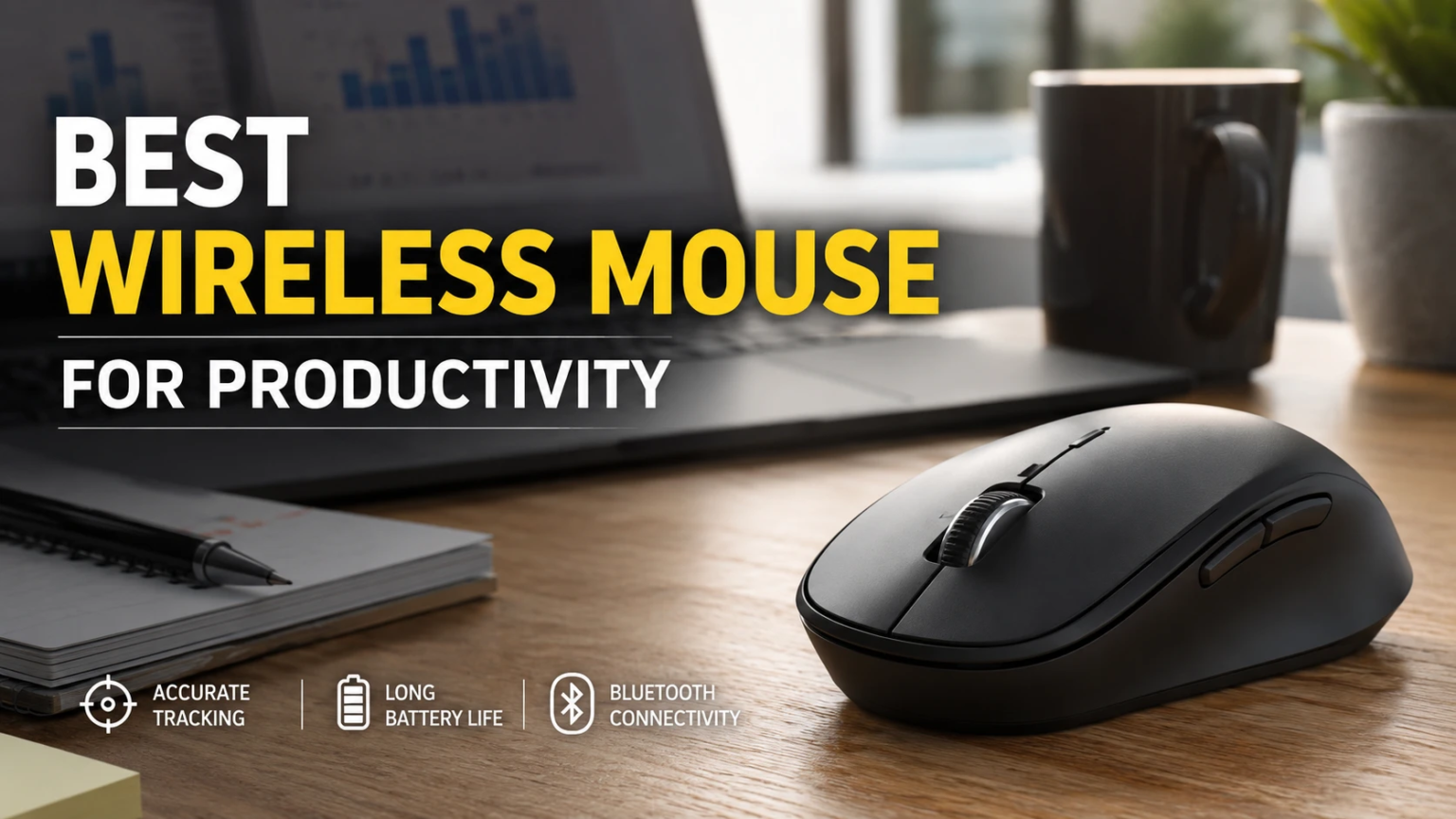
A good wireless mouse can change the way a workday feels. It can make scrolling smoother, reduce hand strain, speed up repeated tasks, and keep your desk cleaner. That matters more than many people think, since most office workers touch their mouse hundreds of times each day.
The right choice is not only about brand names. Shape, weight, scroll wheel quality, battery life, software support, and button layout all affect daily comfort. A cheap mouse can work for basic browsing, but a better productivity mouse can save time in spreadsheets, documents, design apps, browser tabs, and project tools.
For buyers who want a clear starting point, this guide explains what makes the Best Wireless Mouse for Productivity worth buying, which features matter most, and how to choose a model that fits your work style.
Why a Wireless Mouse Matters for Productivity
A wireless mouse gives you more room to move. It removes cable drag, keeps the desk cleaner, and makes it easier to switch between a laptop, monitor setup, and travel bag. Good wireless mice now feel fast enough for normal office work, creative tasks, and light gaming after hours.
Modern productivity mice often support Bluetooth and a 2.4 GHz USB receiver. Bluetooth keeps ports free. A USB receiver can feel more stable in busy wireless areas. Many premium models support both, so users can switch based on the device.
Multi-device pairing is another useful feature. A mouse that connects to a laptop, desktop, and tablet can reduce desk clutter. It can also help people who work across Windows, macOS, ChromeOS, or Linux.
The Best Productivity Mouse Is Comfortable First
Comfort should come before extra buttons. A mouse that causes wrist pain or finger fatigue will slow you down. Size matters here.
Large hands often feel better with a full-size mouse like the Logitech MX Master series. Small and medium hands may prefer compact models like the MX Anywhere 3S or a vertical mouse like Logitech Lift. A travel mouse can feel great in a backpack, but it may feel cramped during an eight-hour workday.
Grip style matters too. Palm grip users need more body support. Claw grip users often like shorter mice with clear button tension. Fingertip grip users usually prefer lighter mice that move with small finger motions.
A vertical mouse can help some users keep the wrist in a more natural angle. It does not fix every comfort issue, but it can reduce twisting for people who feel strain with a flat mouse. The best test is simple: after 30 minutes, your hand should feel relaxed, not forced into position.
Key Features to Look For
A strong productivity mouse should offer more than basic pointing. Look for these features before you buy.
A fast scroll wheel helps with long web pages, spreadsheets, PDFs, and code files. Some mice include free-spin scrolling, which lets you move through large documents with one quick flick. Side scrolling helps in timelines, spreadsheets, and design software.
Programmable buttons can save time. Back and forward buttons help in browsers. A thumb button can open search, paste text, switch desktops, mute calls, or launch an app. The best setup depends on your work, but even two custom shortcuts can reduce repeated clicks.
Battery life matters too. Some wireless mice use AA or AAA batteries and run for months. Others use USB-C charging and run for weeks per charge. Rechargeable mice cost more at first, but they remove the need to store spare batteries.
Quiet clicks help in shared spaces. They are useful in offices, bedrooms, libraries, and calls. A silent mouse will not make work faster by itself, but it makes the setup feel calmer.
Best Wireless Mouse Types for Different Workers
The best mouse for you depends on your work. A video editor, accountant, writer, programmer, and student all need different things.
For heavy office work, a full-size productivity mouse makes the most sense. Look for a sculpted body, strong scroll wheel, side buttons, multi-device support, and software profiles. The Logitech MX Master line is popular here, since it focuses on comfort, app shortcuts, and advanced scrolling.
For travel, choose a smaller mouse. The MX Anywhere 3S is a strong example of this type. It fits smaller desks and laptop bags, yet still offers a premium scroll wheel and quiet clicks. Travel users should avoid heavy mice unless they need full-size comfort.
For wrist comfort, a vertical mouse deserves attention. Logitech Lift and Lenovo Go Wireless Vertical Mouse are made for a handshake-style grip. This shape can feel odd at first, but many users adjust after a few days.
For quiet office use, look for silent switches. Razer Pro Click Mini is one example built with low-noise clicks and long battery claims. It suits shared spaces, meeting rooms, and home offices where click noise becomes annoying.
For users who want one mouse for work and gaming, a lighter mouse with higher polling options can work well. Keychron M6 is one example with wired, Bluetooth, and 2.4 GHz support. It suits people who want a productivity shape but still care about sensor control.
Bluetooth vs USB Receiver
Bluetooth is clean and simple. It keeps your USB ports open and works well with laptops, tablets, and compact setups. It is a smart choice for writing, browsing, research, and office apps.
A 2.4 GHz receiver usually gives a stronger, lower-latency connection. It is better for users who notice cursor lag or work in crowded Bluetooth areas. It can also help with large monitors, creative apps, and fast pointer movement.
The safest choice is a mouse that supports both. Use Bluetooth for travel and the receiver for your main desk.
DPI, Sensor Quality, and Real-World Use
DPI measures pointer sensitivity. A high DPI number sounds impressive, but most productivity users do not need extreme settings. A range from 800 to 4000 DPI works for many desks. Higher DPI can help on 4K monitors and multi-monitor setups, since the pointer needs to cross more pixels.
Sensor quality still matters. A better sensor tracks more cleanly on different surfaces. Some premium mice work on glass, which helps users who move between desks. A cheap sensor can skip, drift, or feel uneven.
For office work, smooth tracking matters more than the highest DPI number on the box.
Software Can Make or Break the Experience
Good mouse software lets you set button actions, pointer speed, scroll behavior, and app-specific profiles. That means the same button can do one thing in Chrome, another thing in Excel, and another thing in Photoshop.
This is where premium productivity mice earn their price. A shortcut button can copy cells in a spreadsheet, open Mission Control on a Mac, switch virtual desktops in Windows, or trigger a custom macro.
Still, simple is better. Do not assign every button on day one. Start with back, forward, copy, paste, and app switch. After a week, add more shortcuts only where you repeat the same task often.
Common Buying Mistakes
Many buyers choose a mouse based on looks. That can lead to poor comfort. A slim mouse looks clean, but it can force the fingers and wrist into a tense position during long sessions.
Another mistake is buying a gaming mouse only for office work. Gaming mice can be excellent, but some lack office features like horizontal scrolling, quiet clicks, multi-device pairing, or app profiles.
Some buyers ignore weight. A heavy mouse can feel stable, but it may tire the hand. A light mouse moves fast, but it may feel less supportive. Try to match weight to your work. For long scrolling and document work, comfort often beats speed.
Battery type matters too. Rechargeable mice feel modern, but AA-powered mice can run much longer between changes. Frequent travelers may prefer replaceable batteries. Desk users may prefer USB-C charging.
How to Choose the Right Mouse
Start with your hand size. Then pick the shape. After that, choose the features.
A full-size mouse suits long workdays at a desk. A compact mouse suits travel and smaller hands. A vertical mouse suits users who feel wrist strain. A quiet mouse suits shared spaces. A multi-device mouse suits people who switch between laptop, desktop, and tablet.
Next, check the scroll wheel. For productivity, this is one of the most important parts of the mouse. Fast scrolling saves time in long documents. Horizontal scrolling helps spreadsheets and creative tools.
Then check the buttons. You do not need ten buttons, but you should have enough for common shortcuts. Back, forward, scroll click, side scroll, and one custom thumb action can make a big difference.
At the end, check battery life, charging type, connection options, and software support. These details decide how the mouse feels after the first week.
Final Verdict
The best wireless mouse for productivity is the one that fits your hand, your desk, and your work habits. A premium model can help if you spend many hours at a computer each day. Better scrolling, custom buttons, quiet clicks, and multi-device support can make daily work feel faster and less tiring.
For most desk users, a full-size productivity mouse is the safest choice. For travel, choose a compact model. For wrist strain, try a vertical design. For shared offices, choose quiet clicks. For mixed work and play, choose a mouse with strong wireless modes and a better sensor.
Do not buy only by brand or DPI number. Buy for comfort, control, scroll quality, and the tasks you repeat every day. That is where a good wireless mouse proves its value.